atriatech/media
Composer 安装命令:
composer require atriatech/media
包简介
Explore, Upload, Delete and Create new folder in your laravel project
README 文档
README
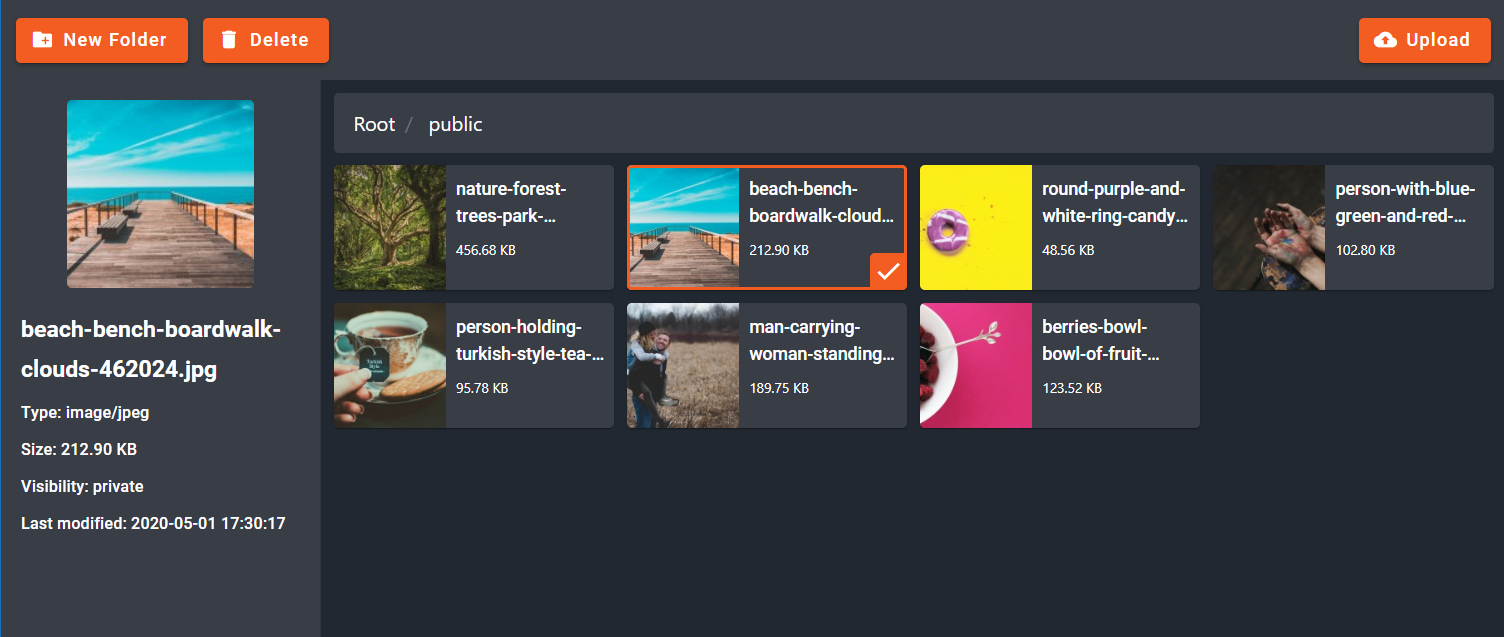
Media - Explore, Upload, Delete and Create new folder
You can use this package to upload your media and attach the media to your models.
| Version | Laravel |
|---|---|
| ^1.0.0 | ^6.0.0 |
| ^2.0.0 | ^8.0.0 |
Installation
composer require atriatech/media.- add
Atriatech\Media\MediaServiceProvider::classtoprovidersarray insideconfig/app.php. - add
'AtriatechMedia' => Atriatech\Media\Facades\AtriatechMedia::classtoaliasesarray insideconfig/app.php. - add
"Atriatech\\Media\\": "vendor/atriatech/media/src/"toautoload => psr-4object insidecomposer.jsonfile, then run this command:composer dump-autoload. - If you haven't link your storage, please run this command
php artisan storage:link. - run
php artisan vendor:publish --tag=atriatech-media-configto copy the config file intoconfigfolder. - run
php artisan vendor:publish --tag=atriatech-media-publicto copy asset files intopublicfolder, running this command with--forceflag is recommended. - run
php artisan vendor:publish --tag=atriatech-media-migrationsto copy the migrations intodatabase/migrationsfolder. - run
php artisan migrateto create the tables.
API
You can use these methods on your model:
| Method | Parameters | Description | Example |
|---|---|---|---|
| addMedia | $paths - (Single-Array) | Add media to your model | User::findOrFail(1)->addMedia([$request->input('image')]) |
| updateMedia | $paths - (Array) | Update media for your model | User::findOrFail(1)->updateMedia([$request->input('image')]) |
| removeMedia | $name - (Single-Array) | Remove media from your model | User::findOrFail(1)->removeMedia('image') |
| getMedia | - | Return all the media for your model | $media = User::findOrFail(1)->getMedia() |
| getMediaByName | $pattern (String) | Return all the media that has a name with the provided pattern | $media = User::findOrFail(1)->getMediaByName('/(extra_images)/') |
| getMedium | $id - (Integer) | Get a single medium of your model with an id, If id is empty it will return the first medium | $medium = User::findOrFail(1)->getMedium(2) |
| getMediumByName | $name - (Single-Array) | Get a single medium of your model with the name, If the name is empty it will return the first medium | $medium = User::findOrFail(1)->getMediumByName('image') |
There is a getSubSize method for a single medium which you can get a specific subSize (that you defined in the config file) of an image, using below code:
$medium->getSubSize('thumbnail');
Usage
First, take A look at the atriatech_media.php file in config folder.
Add AtriatechMedia to your model
use Atriatech\Media\AtriatechMedia;

class Product extends Model
{
    ...
    use AtriatechMedia;
    ...
}
In your view you have to load the css and js files and load the media selector:
Example:
<!doctype html>
<html lang="en">
<head>
    <meta charset="UTF-8">
    <title>Atriatech Media</title>
    <!-- load the css file -->
    @atriatech_media('css')
</head>
<body>
<form method="post">
    @csrf
    <!-- load the media selector -->
    @atriatech_media_start
        @atriatech_media_file('img', '{"name": "image", "placeholder": "Image", "file": ""}')
    @atriatech_media_end
    <!-- load the media selector -->
    <br>
    <button type="submit">Submit</button>
</form>

<!-- load the js files -->
@atriatech_media('js')
</body>
</html>
The @atriatech_media_file directive has two parameters:
- ID - for the media selector
- OPTIONS - A JSON object with these keys:
{
    "name": "(String)", // the key which you can get in $request object when the form submitted
    "placeholder": "(String)", // placeholder for the media selector
    "file": "(String)", // Current media path to show in media selector
    "id": "(Number)" // Current media id
}
Upload from controller
To upload a file from controller simply use the AtriatechMedia facade.
use Atriatech\Media\Facades\AtriatechMedia;

class HomeController
{
    function index()
    {
        $file = $request->file('file');
        AtriatechMedia::upload($file, 'path'); // path is optional
    }
}
Load with JS
If you want to load the selector with javascript use the instruction below:
add this inside or outside the media selector blade directives.
@atriatech_media_start
<div id="mp3"></div>
@atriatech_media_end

<!-- OR -->

<div id="mp3"></div>
then load the selector with this code
AtriatechMedia.loadMediaSelectorWithJS('mp3', {name: 'mp3', placeholder: 'MP3', accept: '.mp3'});
The parameters of loadMediaSelectorWithJS method are exactly like @atriatech_media_file directive. It only has a third parameter that get true or false. you should pass false if you want to add that div element outside the media selector blade directives.
Integrations
CKEditor
In your view add a textarea:
<textarea name="editor1"></textarea>
Use media as CKEditor file browser:
CKEDITOR.replace( 'editor1', {
    filebrowserBrowseUrl: mediaRoute('atriatech.media.index'),
    filebrowserImageBrowseUrl: mediaRoute('atriatech.media.index') + '?accept={{ config('atriatech_media.mime_types.image/*') }}',
});
统计信息
- 总下载量: 360
- 月度下载量: 0
- 日度下载量: 0
- 收藏数: 4
- 点击次数: 0
- 依赖项目数: 0
- 推荐数: 0
其他信息
- 授权协议: MIT
- 更新时间: 2020-04-30